
How to install
Go live in 4 simple steps
Getting started with TVMedia is easy. Create your account, install the mobile app on your phone and the TVMedia app on your screen. Then scan the QR code on the screen with your phone to connect it to your account.
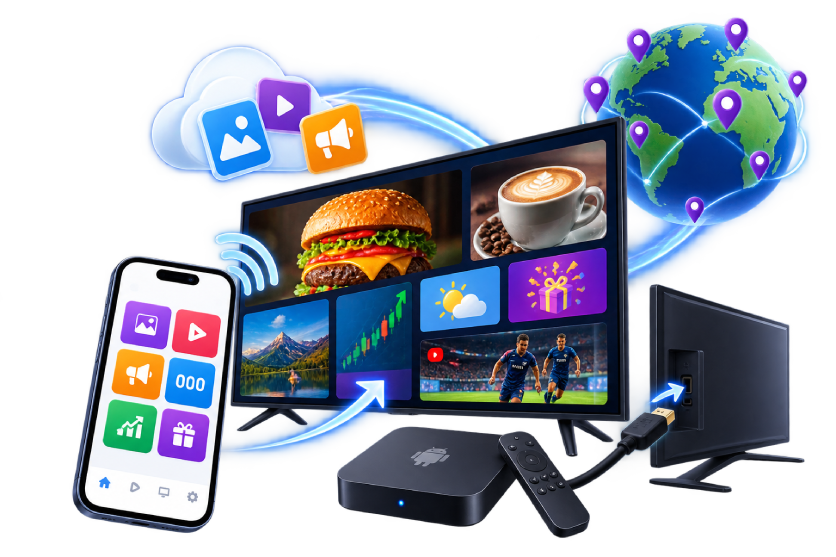
No extra device is needed on Android TV or supported Samsung Smart TVs. If you use a different television or screen, connect an Android TV box and use your existing display with TVMedia.
No technical knowledge required. No complex setup. You are ready to go live in a few steps.
Setup is that easy
After you apply and your account is created, follow the four steps below to connect your screen to TVMedia and start broadcasting.
-
Step 1
Create your TVMedia account
Fill in the application form. After your account is created, your login details are sent to you.
Use these details to sign in to the TVMedia mobile app and the web dashboard, and manage your screens and content.
Apply for free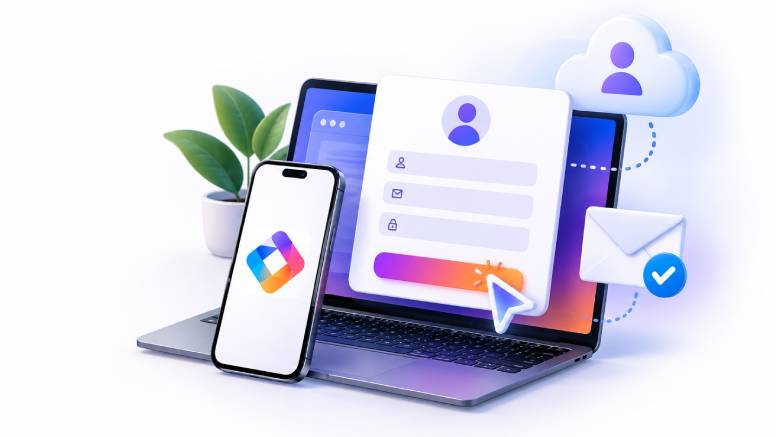
-
Step 2
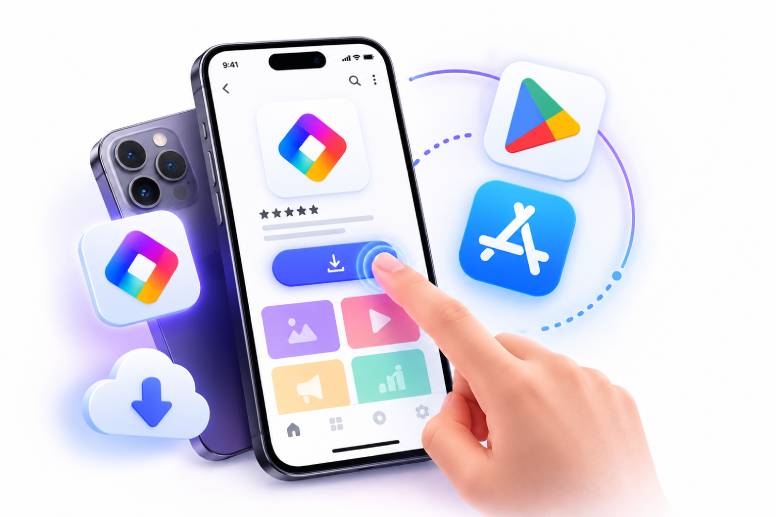
Install the mobile app on your phone
Install the TVMedia mobile app on your Android or iPhone and sign in with your account details.
From the mobile app you can connect screens to your account, manage your content and control your screens remotely.


-
Step 3
Install TVMedia on your screen
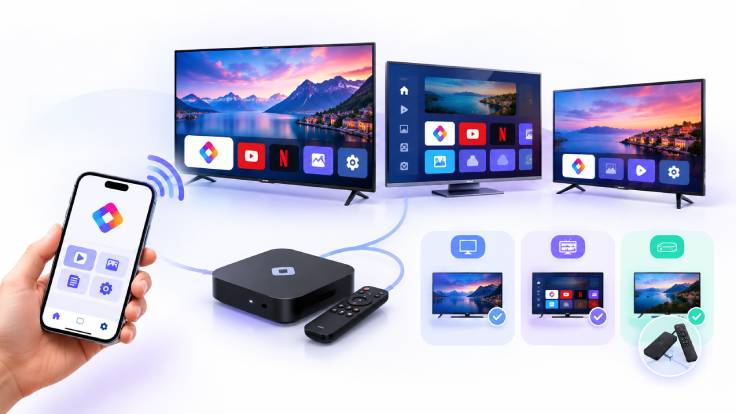
Install the TVMedia app on the screen you want to broadcast from. Choose one of the methods below for your screen type.
Android TV Open Google Play Store, find the TVMedia app and install it directly on your television. Samsung Smart TV TVMedia will also be available very soon in the Samsung Smart TV app store. Samsung TV users will then be able to install TVMedia directly on their televisions. Other televisions and screens If your television is not an Android TV or a supported Samsung Smart TV, you do not need to buy a new screen. Connect an Android TV box to any television or display with an HDMI input and install the TVMedia app on the box. No extra device is needed on compatible Smart TVs. On other screens you can use an Android TV box.
-
Step 4
Connect your screen with a QR code
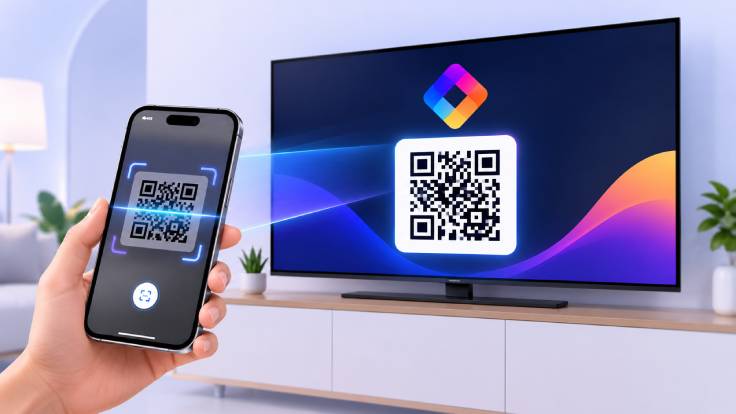
Open the TVMedia app on your screen. A QR code made for you will appear.
Open the TVMedia app on your phone and scan the QR code on the screen. Your screen is added to your account automatically and is ready to manage remotely.
Scan the QR code → Connect your screen → You are ready.
After that
Upload your content and start broadcasting
Your screen is now connected to TVMedia.
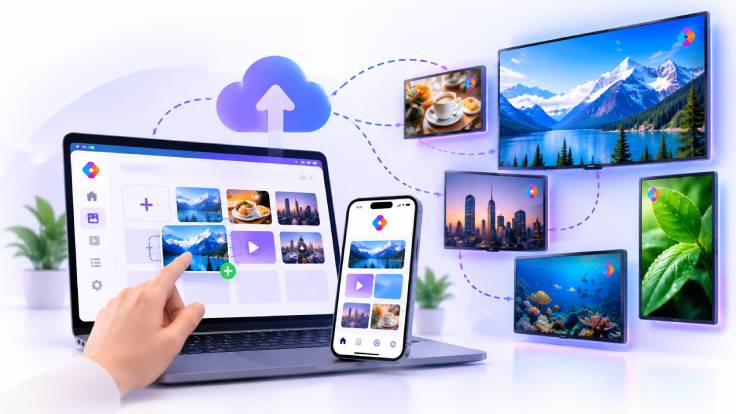
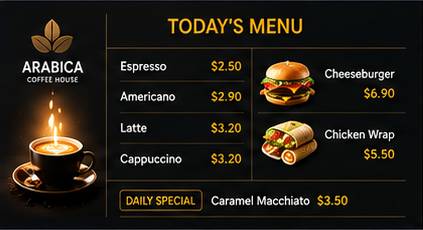
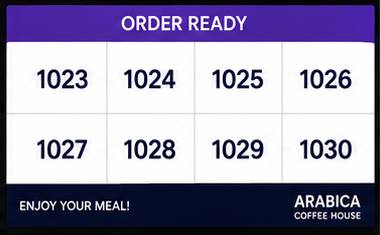
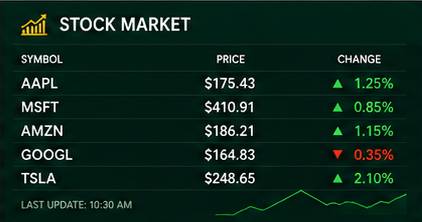
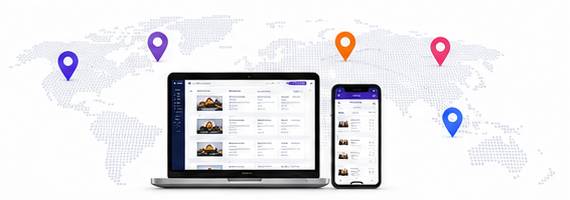
From the mobile app or the web dashboard, upload your images and videos, build playlists and choose which content plays on which screens.
Your content is sent to your screens and your broadcast starts.
You can manage a single screen or thousands of screens around the world from the same place.